Short answer
You need the right TELOS app and your own Xtream access or M3U link. Install the app from the official store, connect your source and test one channel first. Then set up your profile and favorites. TELOS does not include channel packages or movies.
Before you start: three things you need
Have your device, a working internet connection and the login details for your own legally usable source ready. Installing the player does not give you access to content. A store account for downloading the app and a login with your content provider serve different purposes.
- For Xtream: your provider's server address, username and password.
- For M3U: the full link to your playlist. It may already contain personal login details.
- For your first test: a channel or title that your access actually includes.
Also check that your access is active and how many streams it allows at the same time. A TV that is already playing may be using a connection. Keep your details private; you do not need to post them in a forum or send them to an unfamiliar test website to set things up.
Install the right app for your device
The TELOS download page points you to the official installation options. Choose your exact device there. iPhone and iPad use the Apple app, Apple TV has its own TV entry, and compatible Fire TV devices use the Amazon Appstore.
For Fire TV, the device name alone can be misleading: TELOS supports compatible models running Fire OS 6, 7 or 8. Vega OS, Fire OS 5 and Fire tablets are not supported. The Fire OS and Vega OS check (in German) can help you identify yours. There is no official TELOS APK download for Fire TV.
Open TELOS in the Amazon Appstore or the Apple App Store listing, check device compatibility and install the app. Store review for LG and Samsung is in progress; do not follow instructions that promise a native download is already available.
Xtream or M3U: choose the access details you received
Start TELOS and go through the introduction. Then choose the access type for your source. On iPhone and iPad, the options are called “Xtream” and “M3U Link”; on Apple TV, you can also connect with Xtream or an M3U link. On Fire TV, choose the matching access type when adding your source.
For Xtream, enter the server address, username and password in their respective fields. Do not paste the complete M3U link into the server field. For M3U, use the full playlist link, including any additions supplied by your provider. Do not remove parts or guess at extra endings.
If your provider offers both formats, choose deliberately: in the Apple app described here, M3U does not offer downloads, an electronic programme guide or catch-up. Those features require a compatible Xtream source there and depend on the content provided. The Xtream guide and M3U guide explain the formats in more detail.
Enter your access details and check the connection
- Copy the details from the original message or protected customer area of your content provider.
- When pasting, check for unwanted spaces at the beginning or end. Pay attention to uppercase and lowercase letters in your username and password.
- Enter the server address as given, including https or http and any explicitly stated port. Do not change the protocol on a guess.
- Confirm the details and let TELOS load the source.
- If login fails, note the error message and change only one thing at a time.
An empty catalogue can have several causes: incorrect details, expired access or an unreachable source. The TELOS login guide walks you through the next checks. Reinstalling repeatedly will not help if the source itself cannot be reached.
Choose a profile and start a channel
After connecting, choose a profile or create one if the app prompts you. Then open a live channel included with your access. Check the picture and sound. If your source also provides movies or series, test one title from that section next. This helps distinguish a working access from a problem affecting only one item.
If one channel stays black, try another. If nothing plays, first check your access, internet connection and your source's connection limit. A programme guide that is empty while video plays is a separate issue; the EPG guide is the right place to start.
If a purchase prompt appears on an Apple device, treat it separately from a provider error. On iPhone and iPad, playback requires a purchase after the trial period. The free vs. Premium guide explains the differences.
Set up favorites and personal sections
Once playback works, make the catalogue your own selection: save frequently watched channels as favorites and bookmark interesting movies or series for later. Find titles you have started under Continue Watching. This way, you do not have to search the whole catalogue again next time.
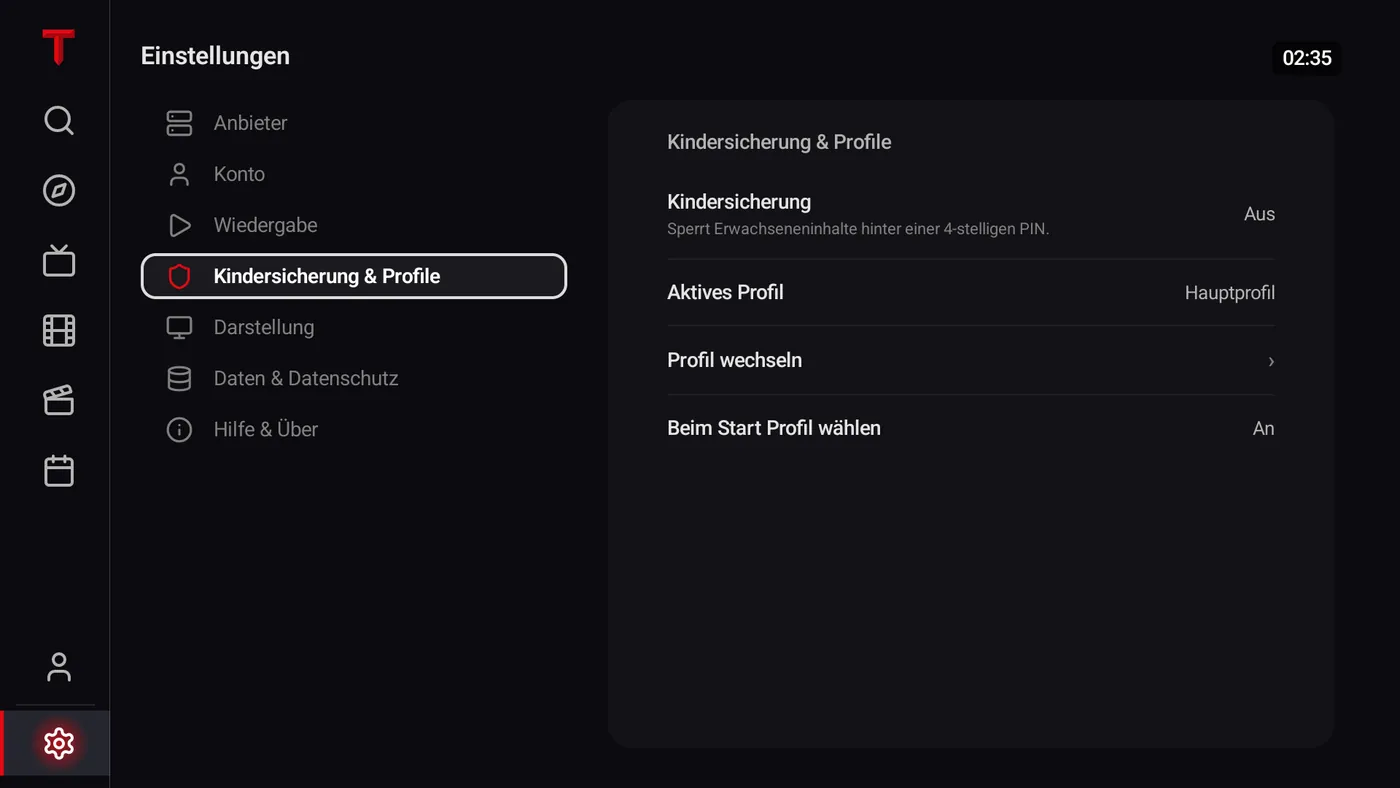
TELOS supports up to five profiles on the Fire TV and Apple versions described here. On Apple, that limit applies per Xtream account; profiles stay on the device they are created on. They keep personal sections separate and do not add simultaneous connections at your provider.
The profiles and child profiles page (in German) explains access controls and PIN protection. Local recommendations develop from your activity, so an empty “For You” row right after setup does not automatically mean something is wrong. Child profiles do not learn viewing preferences.
Activate Apple TV: keep the code separate from your source
There is no direct purchase on Apple TV. Redeem the provided activation code on your phone under “Settings > Device Sync”. This process covers activation; it does not automatically transfer your profiles, favorites or downloads between devices.
Also keep the code separate from your provider login. The server, username and password give you access to your own content source. An app activation code does not replace these details. The TELOS on Apple TV page shows the steps for your device. For mobile setup, see the pages for iPhone and iPad.
A quick final check before your first evening of TV
- The app is from the official store and opens on a compatible device.
- Your source loads, and a channel plays with picture and sound.
- Another item works if it is included with your access.
- You chose the right profile and saved a favorite.
- Your purchase status and content access have been checked separately.
After that, take a look at extra features such as downloads (in German) and personal recommendations (in German). Set them up if you need them. To get started, what matters is a working source and one item that plays reliably.
Frequently asked questions
What do I need to set up TELOS?
You need the right TELOS app, an internet connection and your own legally usable Xtream access or M3U link. The player does not include channels or movies.
Where do I get my Xtream login details?
Your content provider gives you the server address, username and password. Your Apple or Amazon account for downloading the app does not replace these details.
Can I install TELOS on a Fire TV Stick?
On compatible models running Fire OS 6, 7 or 8, use the Amazon Appstore. Vega OS, Fire OS 5 and Fire tablets are not supported. No official Fire TV APK download is offered.
Why do I have no channels after installing the app?
TELOS does not come with a content catalogue. Connect your own source. If the selection stays empty, check your login details, whether the source is reachable and the status of your provider access.
Does Apple TV activation transfer my profiles from iPhone?
No. Activation covers access to the app. Profiles stay local; automatic syncing of profiles, favorites or downloads is not promised.
Do I need to set up all profiles and downloads first?
No. Test a source and a channel first. Then you can set up profiles, favorites and other suitable features. Five profiles do not mean five simultaneous streams are allowed.