Up to five personal profiles
Keep favorites, history and watchlists personal, even on a shared TV.
Official installation route: Amazon Appstore
Your Fire TV Stick can offer more than a long channel list. TELOS gives your own catalog a personal starting point: favorite channels, a movie watchlist and separate profiles for your household. Find the official installation route and help with your first launch here.
For compatible Fire TV Sticks running Fire OS. Bring your own content account.
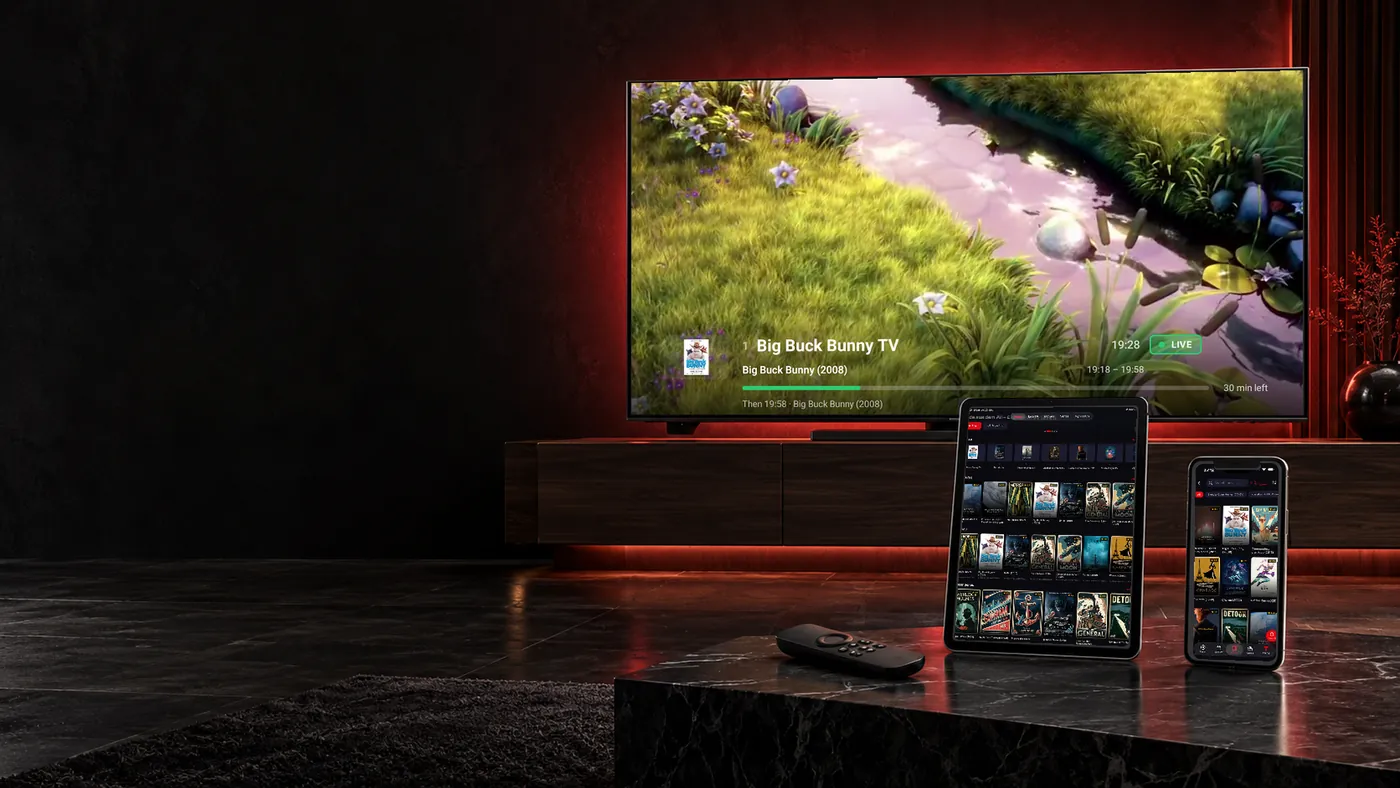
On supported Fire TV Sticks, TELOS offers the same personal areas that accompany your evenings on Fire TV.
Keep favorites, history and watchlists personal, even on a shared TV.
Favorites, your watchlist and Continue Watching bring you back to your own selection.
“For you” learns locally from your viewing. You can pause learning or reset it.
Save eligible movies and episodes, depending on your provider. Wi-Fi is the default.
Already have your own account that you are legally entitled to use and need a player for the TV? TELOS connects your Xtream account or M3U link to live TV, movies and series. What appears comes from your source; no channel package or content subscription is included.
On a stick, finding your selection again matters. Save favorite channels, add a movie for later and return to a started series through Continue Watching. The Fire TV product overview puts the full feature set in context.
Sharing a Firestick does not have to mean sharing a watchlist. TELOS supports up to five profiles with separate favorites, history, Continue Watching, watchlists, downloads and recommendations. Switching profiles returns you to your personal space.
For children, you can approve specific content and protect switching with the household PIN. This is useful when the stick stays on the family TV. The profile answers on this page explain how personal selections stay separate.
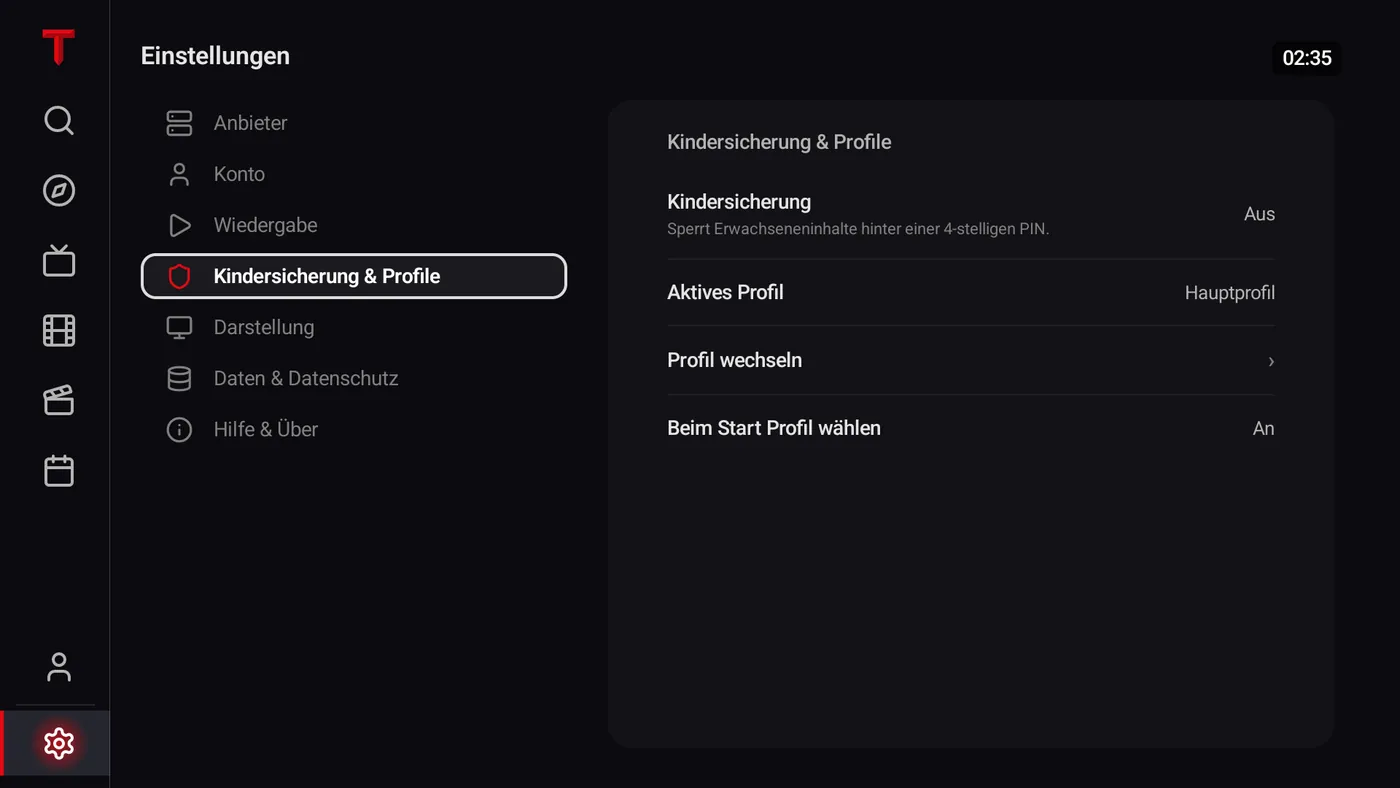
A started movie belongs in Continue Watching; an idea for the weekend belongs on your watchlist. This keeps your catalog organized as you move between channels, movies and series. Search takes you straight to a specific title.
The “For you” row adds local recommendations based on your viewing. It learns on the device, separately for each profile, can be paused or reset, and is not visible on first launch. Kids profiles do not learn tastes. See the Fire TV overview for the recommendation controls and what they consider.
You can download eligible movies and episodes depending on your provider. Start a download on the detail page; saved titles appear under “My TELOS” > “Downloads”. Wi-Fi is used by default. If your stick has limited storage, check the available space first.
A program guide helps with live TV if your provider supplies EPG data. Catch-up also requires suitable content and source support. The Fire TV overview explains saved titles; the EPG guide helps when program data is missing.
Have your stick’s model and operating system ready, along with the complete details for your source. For Xtream, that means server address, username and password; for M3U, the playlist link. A provider name or logo alone is insufficient to connect.
Keep credentials and complete playlist URLs out of public posts and screenshots. To ask for help, start by describing the step where you get stuck.
Compatible devices running Fire OS 6, 7 or 8 are supported; Vega OS and Fire OS 5 are not. There is no official TELOS APK download for Fire TV.

“4K” in the stick’s name does not guarantee every stream. Your source resolution, specific device, TV and connection all need to support the playback. TELOS cannot turn a low resolution channel into 4K content. The 4K overview explains the requirements. Check your exact Fire TV Stick model and operating system when comparing devices.
Storage also depends on the device: a watchlist does not store the movie itself, while a download does. Check the stick’s free space before downloading eligible titles. If a previously installed app shows a cloud icon, that is a separate issue: check the app’s installation status and the stick’s auto-offload settings.
When moving to a new Fire TV Stick, keep your account details ready and check profiles, favorites and downloads on the new device. The FAQ below explains the limits of transferring personal data.
App missing from the store? Check the exact model, operating system and Appstore availability before looking for another installation file. If the entire screen is black, check HDMI and power first. This differs from an empty playlist inside an open app.
For stuttering playback, check the stick’s Wi-Fi connection and compare a second stream. For audio problems, check sound output and compare another stream to separate a source problem from a device setting. Find more answers in the Firestick FAQ.
No. The official route for TELOS on Fire TV is the Amazon Appstore. Search there for “TELOS IPTV Player”.
No. Bring your own legal account or playlist. TELOS provides the player.
Check the model and operating system. Compatible devices running Fire OS 6, 7 or 8 are supported; Vega OS and Fire OS 5 are not.
Yes. On Fire TV, TELOS supports up to five profiles. Watchlists, favorites, history and other personal areas stay separate for each profile.
You need a supported Fire TV Stick, an internet connection and your own legal Xtream account or M3U link. TELOS supplies no channels or content subscriptions.
First check the model, operating system and store availability for that exact device. The Firestick name alone is insufficient. An Android package cannot add missing Vega OS support; follow the model and store checks described on this page.
No. The content, device, TV and connection must support the specific playback. Stick models also differ in operating system. Check the exact model and your source’s quality.
Automatic transfer of all personal data to a new stick is not promised here. Keep your own account details ready and check profiles, favorites and downloads again on the new device. Prepare those details before switching devices.
Check your stick in the Amazon Appstore, then connect your own account. Use profiles, favorites and Continue Watching to fit the player to your everyday viewing.
TELOS is a player for your own legal content source. No channels, movies or content subscriptions are included.