01
Find TELOS
Open the App Store on Apple TV and find TELOS IPTV Player. Use the official listing to check device availability.
Apple TV brings your own IPTV into the living room. Start with the right tvOS version, a valid source and a setup you can navigate with your remote.
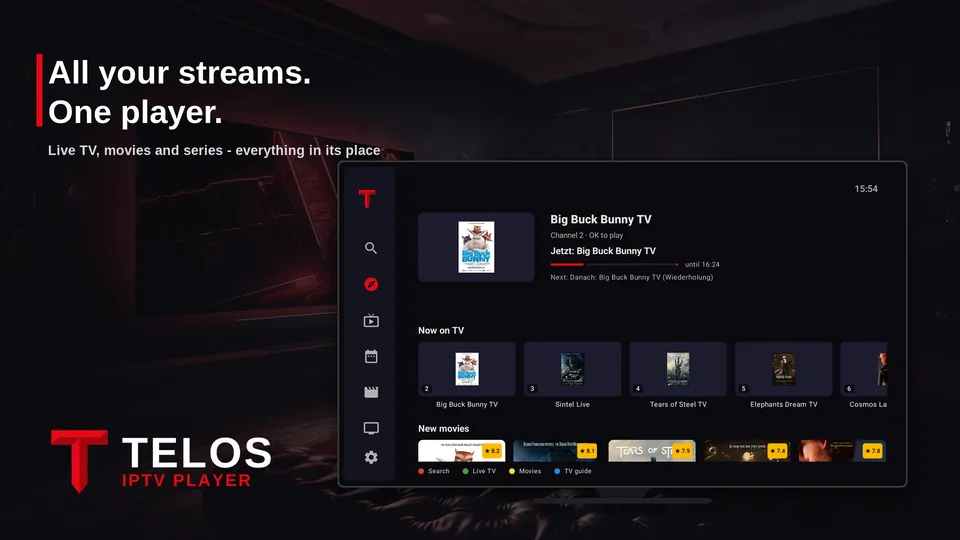


Open the App Store on Apple TV and find TELOS IPTV Player. Use the official listing to check device availability.
Follow the app’s setup instructions. Keep your provider’s server, login or playlist URL ready; TV linking options depend on the app version.
Try a known working channel and check programme data. Use your remote to verify navigation before a long viewing session.
This guide covers the Apple TV streaming device running tvOS. The Apple TV app on a smart television does not turn that television into a tvOS device.
If a playlist loads but one channel fails, compare another channel from the same source. Provider connection limits, stream formats and temporary source outages can affect playback.
If your Apple TV supports Ethernet, a cable removes one possible Wi-Fi bottleneck. For Wi-Fi, test close to the router and read our buffering guide before buying new hardware.
The TELOS download page lists tvOS 17 or later. Check the App Store for the current requirement before installing.
No. TELOS plays the content from your own legal playlist or provider login.
Resolution depends on the source, device, stream format and network. Installing a player does not turn an HD stream into 4K.
M3U or Xtream Codes: TELOS brings your own content into one player. The channels, films and programme data you see depend on your provider.
TELOS is a player. Bring your own legal playlist. No channels, films or subscriptions to content are included.